Preferences
Open the preferences from Preferences ▸ 3D Cursor, or from Tools ▸ 3D Cursor ▸ Preferences.
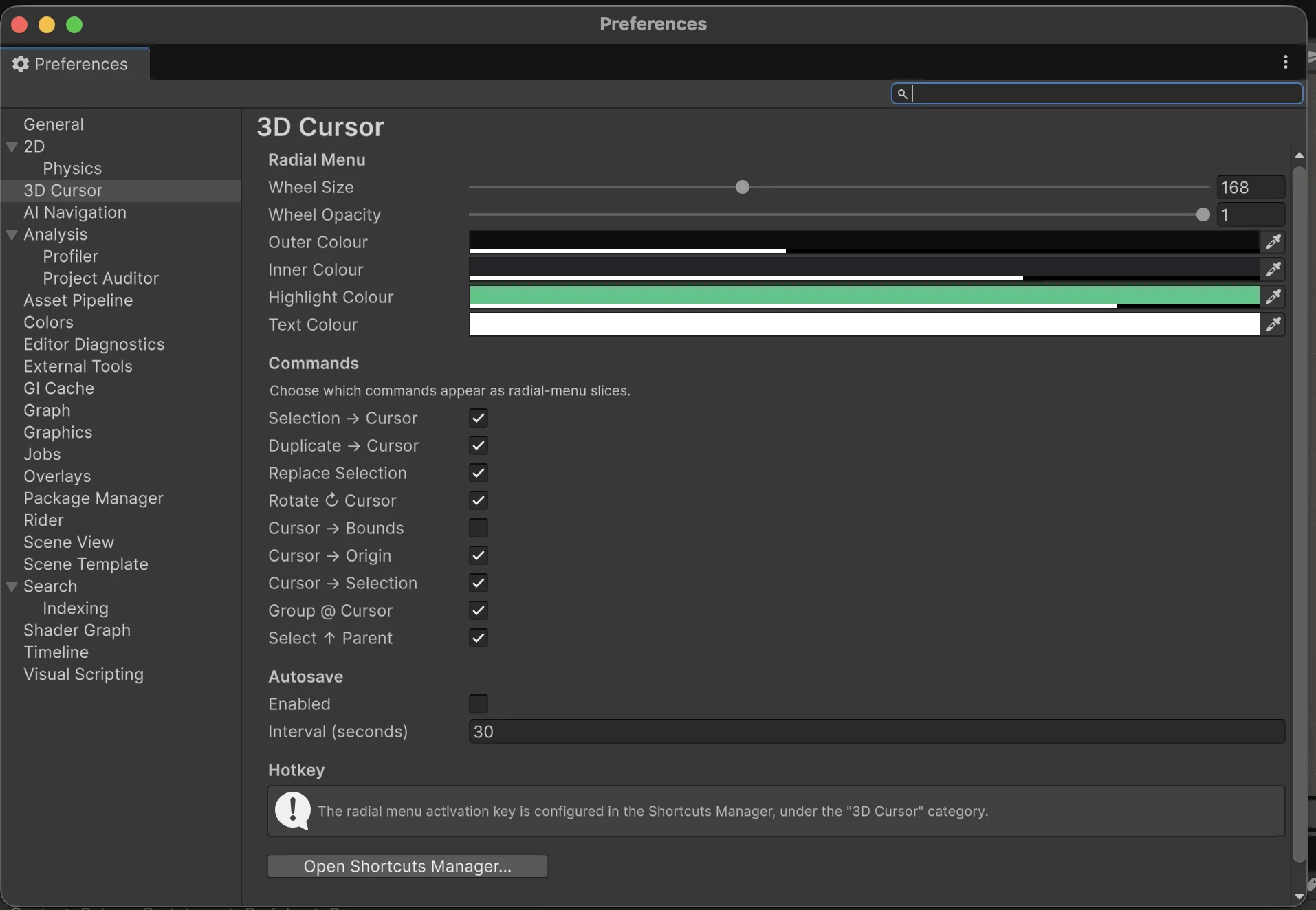
- Wheel size. How large the radial menu is drawn.
- Wheel opacity. How solid or see-through the menu is.
- Colours. Set the outer ring, inner ring, highlight, and text colours independently to match how you like to work.
- Commands. Turn individual commands on or off to control which slices appear in the wheel. New commands are enabled by default; Cursor to Bounds is the one command hidden out of the box.
- Autosave. Turn on an optional background autosave and set how often it runs. It works even when the editor window is closed.
- Reset to defaults. Puts every setting back to its original value. You're asked to confirm first.
- Open Shortcuts Manager. A shortcut to Unity's shortcut settings so you can rebind the menu key (see Shortcuts & rebinding).
Your settings are stored per machine, so they follow you between projects on the same computer.