Commands
The commands fall into two groups: ones that move the cursor, and ones that act on your selected objects using the cursor. Every command needs at least one object selected.
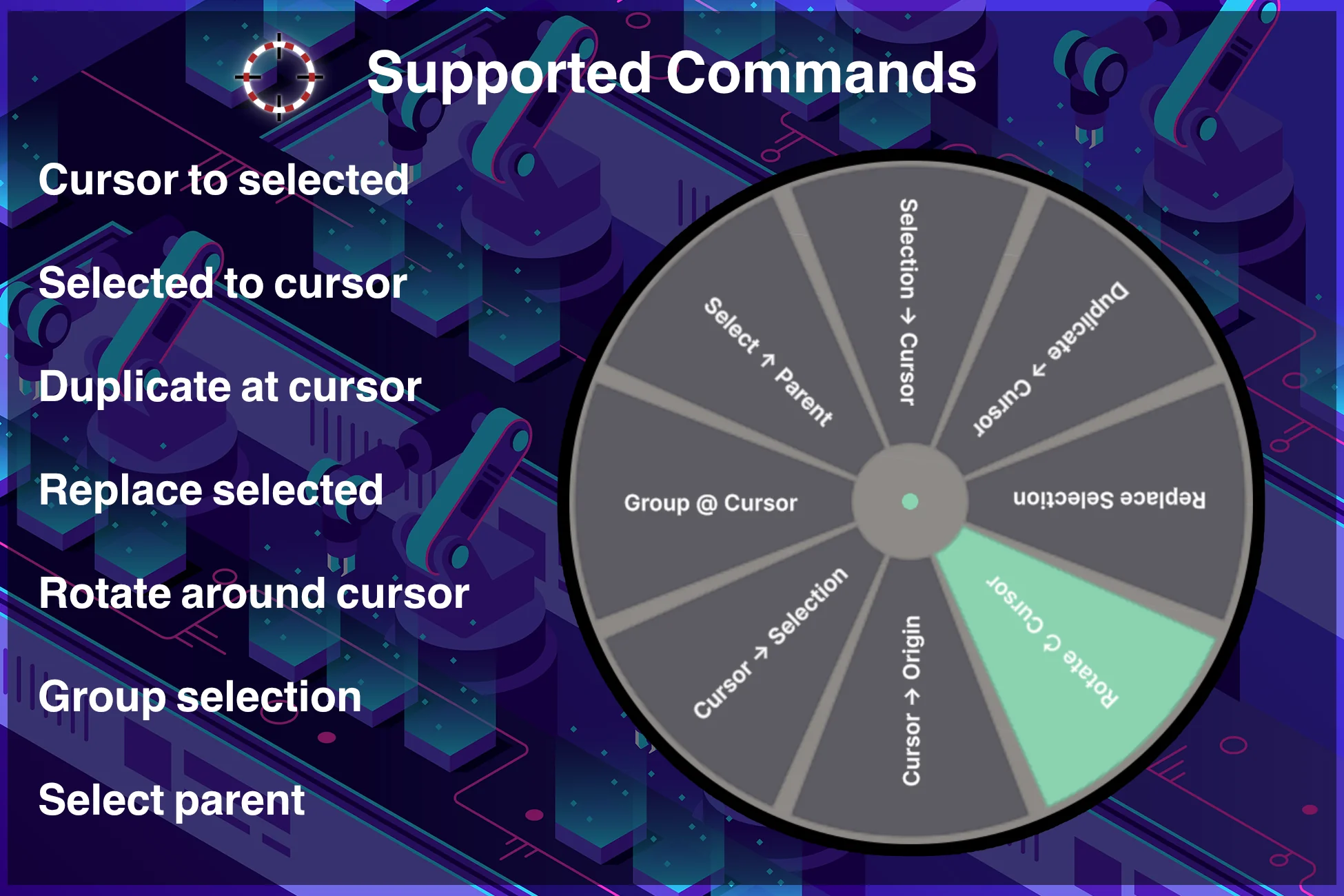
Two commands have their own in-depth pages: Duplicate & Group and Replace Selection.
Move the cursor
Cursor to Bounds. Moves the cursor to the centre of the selected object's mesh bounds. This accounts for the actual shape rather than the pivot point. (Hidden from the wheel by default — enable it in Preferences.)
Cursor to Origin. Moves the cursor to the selected object's transform position — its pivot. Useful when an object's pivot is deliberately placed somewhere meaningful.
Cursor to Selection. Moves the cursor to the averaged centre of everything you have selected. It has its own offset so you can sit the cursor a fixed distance from that centre.
Select Parent. Replaces the current selection with its parent object — a quick way to step up the hierarchy without leaving the Scene view.
Act on the selection
These use the cursor as the target or pivot.
Move to Cursor. Moves the selected objects to the cursor. An optional offset lets you place them a fixed distance away rather than exactly on it.
Duplicate to Cursor. Creates prefab-aware copies of the selection at the cursor, with count, offset, optional grouping, and more. See Duplicate & Group.
Rotate around Cursor. Rotates the selection around the cursor on the axis you choose, by the angle you set. Because the cursor is the pivot, you can rotate objects around a point that is not their own centre — for example swinging a door around its hinge.
Replace Selection. Swaps the selected objects for a chosen prefab, in place. See Replace Selection.
Group at Cursor. Creates a new empty parent at the cursor and places your selected objects under it. You can name the group in the adjust panel.